How To Configure Your Shop Profile
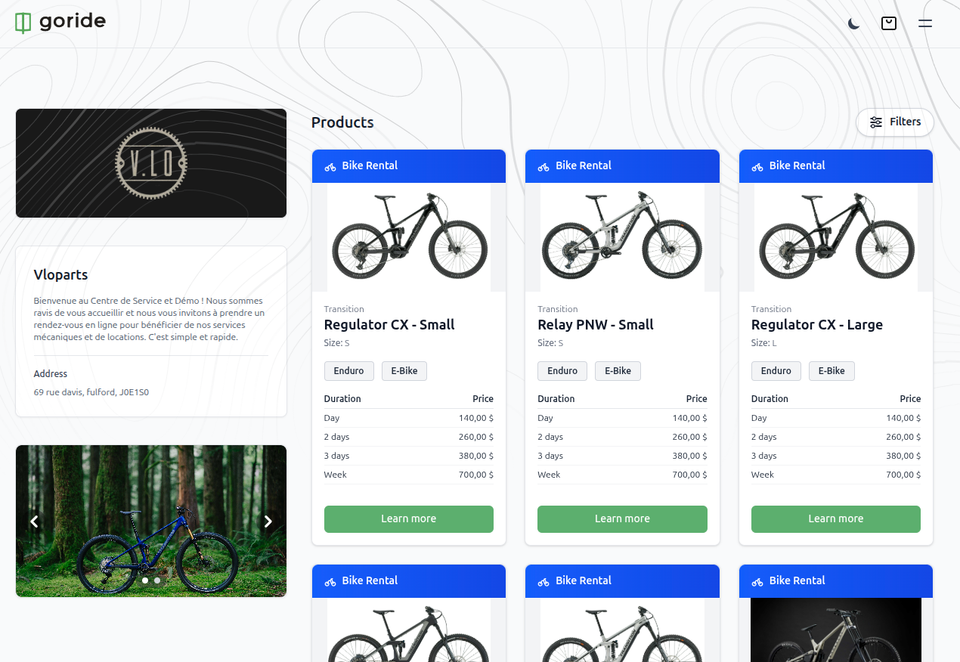
Learn how to securely log in to your GoRide account using your credentials and navigate to the profile management settings. This guide simplifies the process of updating your store information, including your name, logo, and banner settings.
1. Once our team will have reviewed and created your account, you will receive your login information by email.
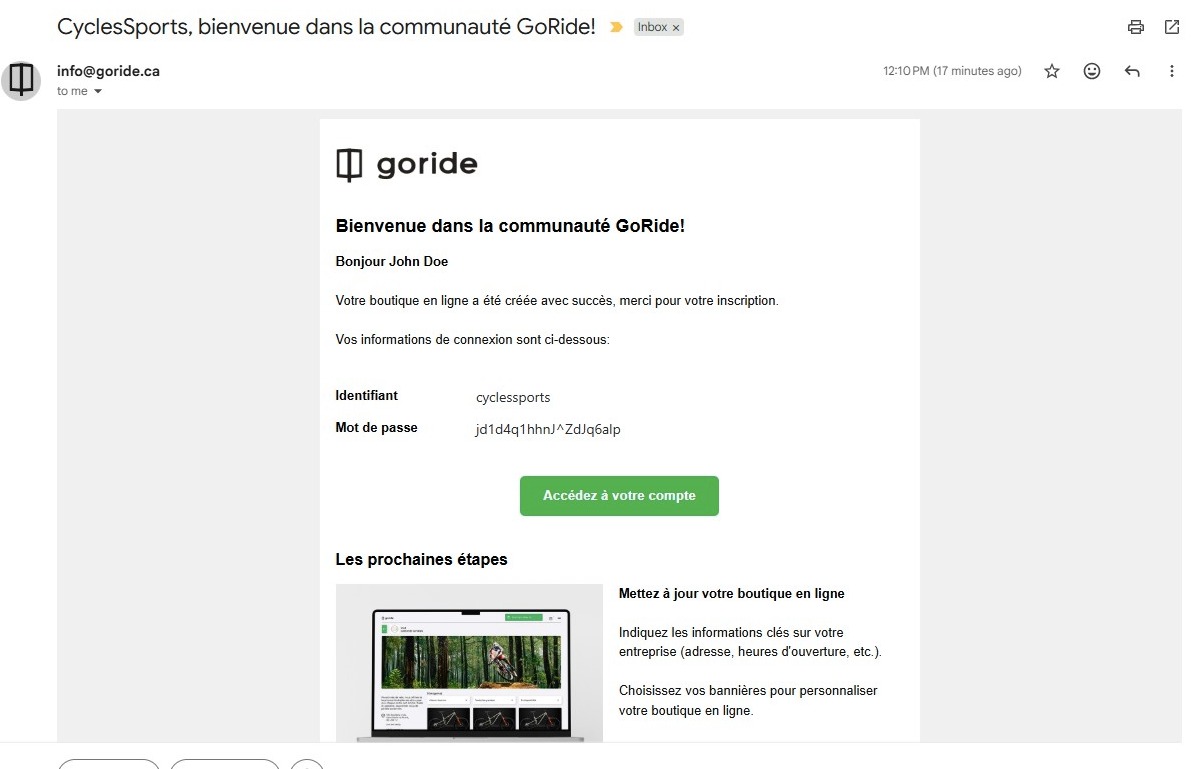
2. Click "Accédez à votre compte"
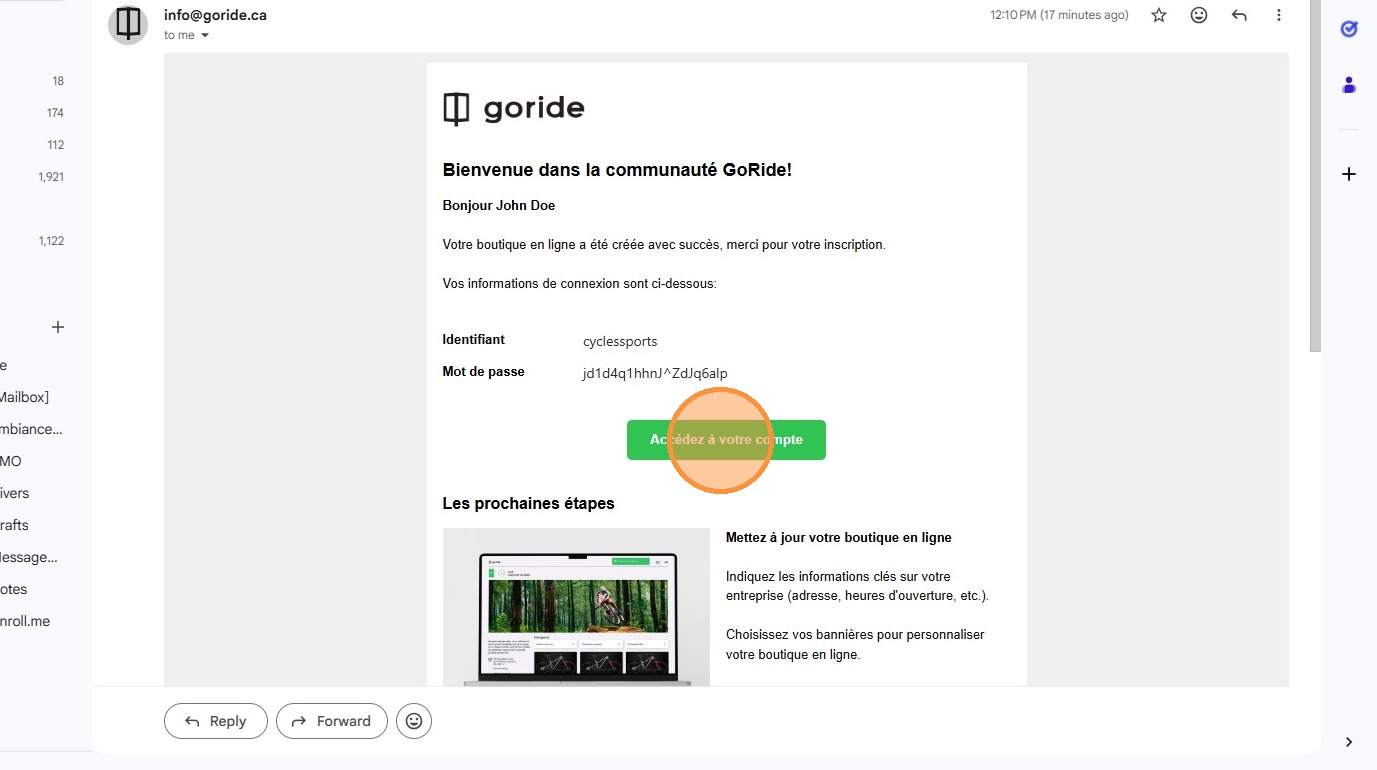
3. Copy-Paste the login information from your email and click "Se connecter"
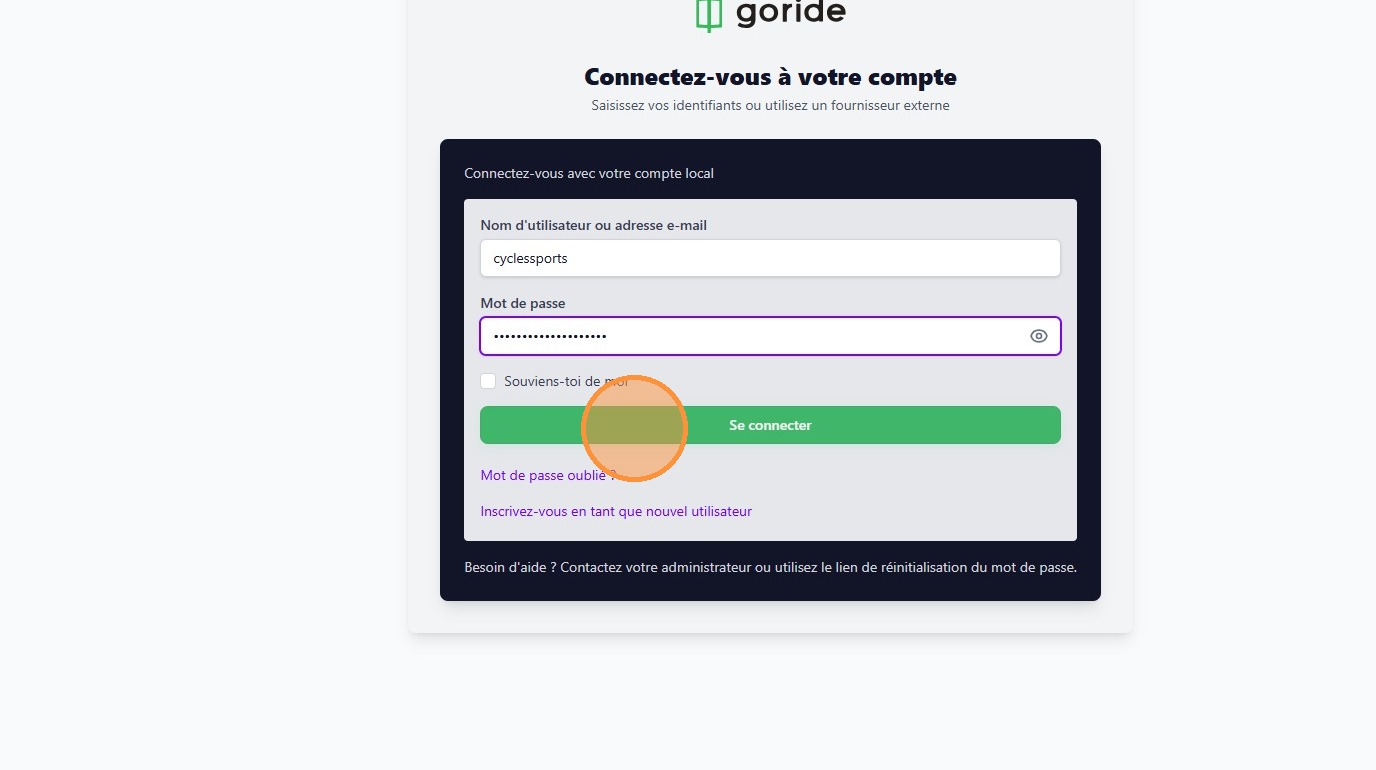
4. You will be redirected to your dashboard. This is where you can manage everything related to your online store. In this tutorial, we will make sure your shop information is complete and accurate.
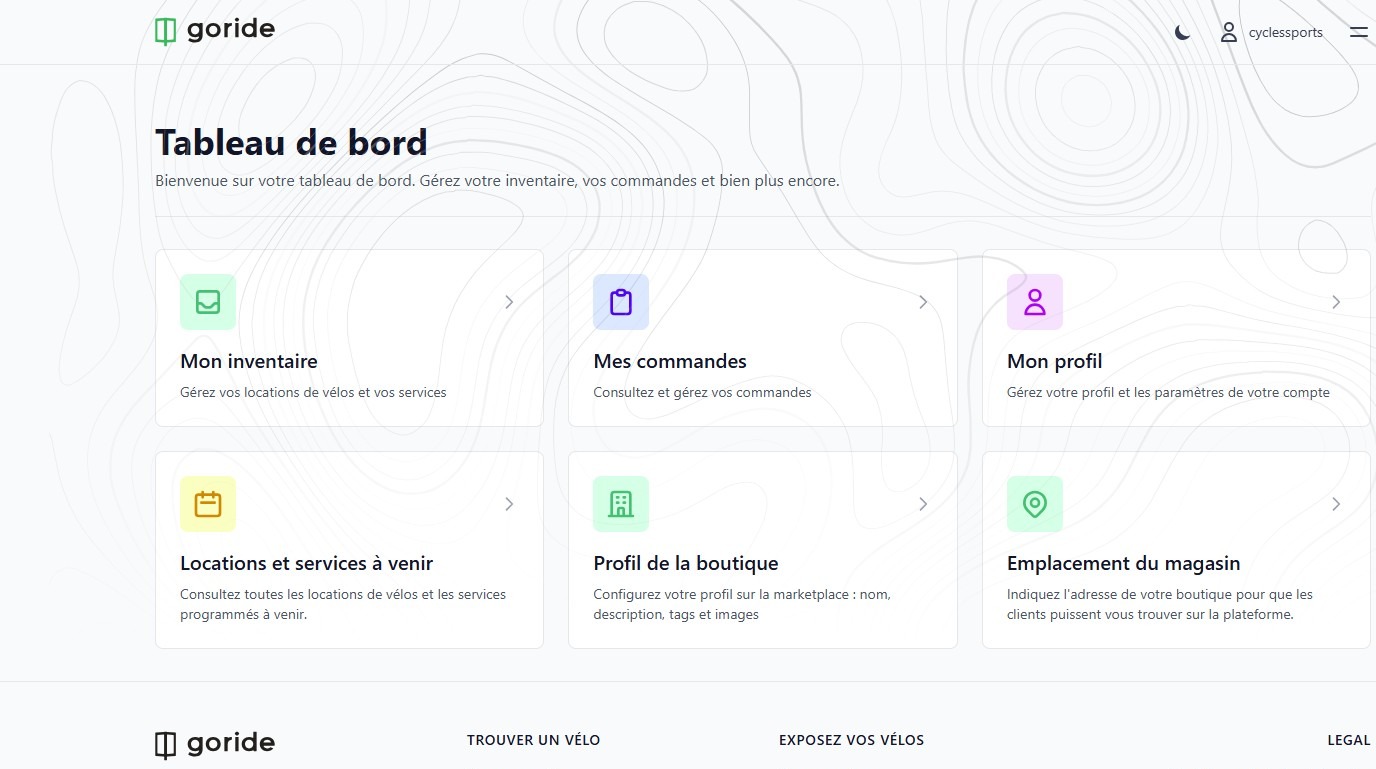
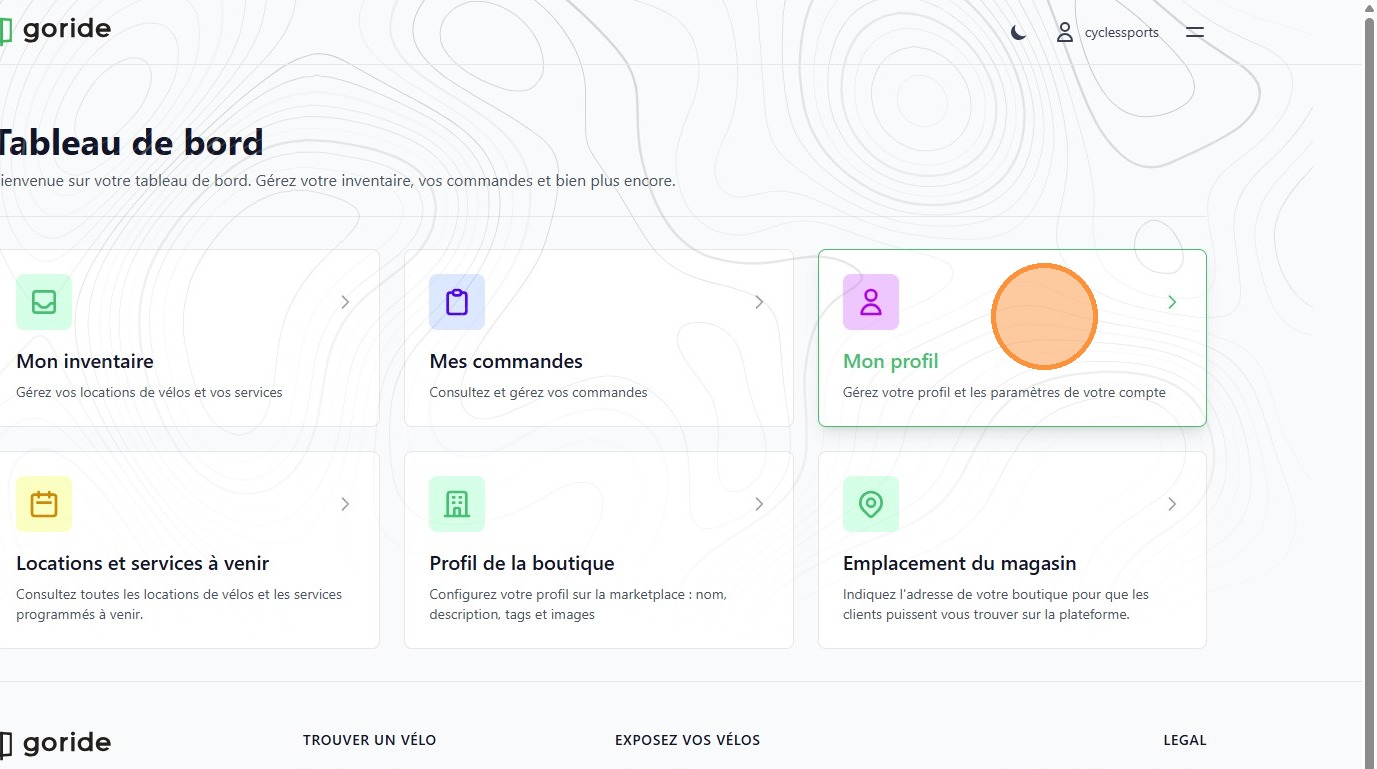
5. First, Click "Mon Profil"
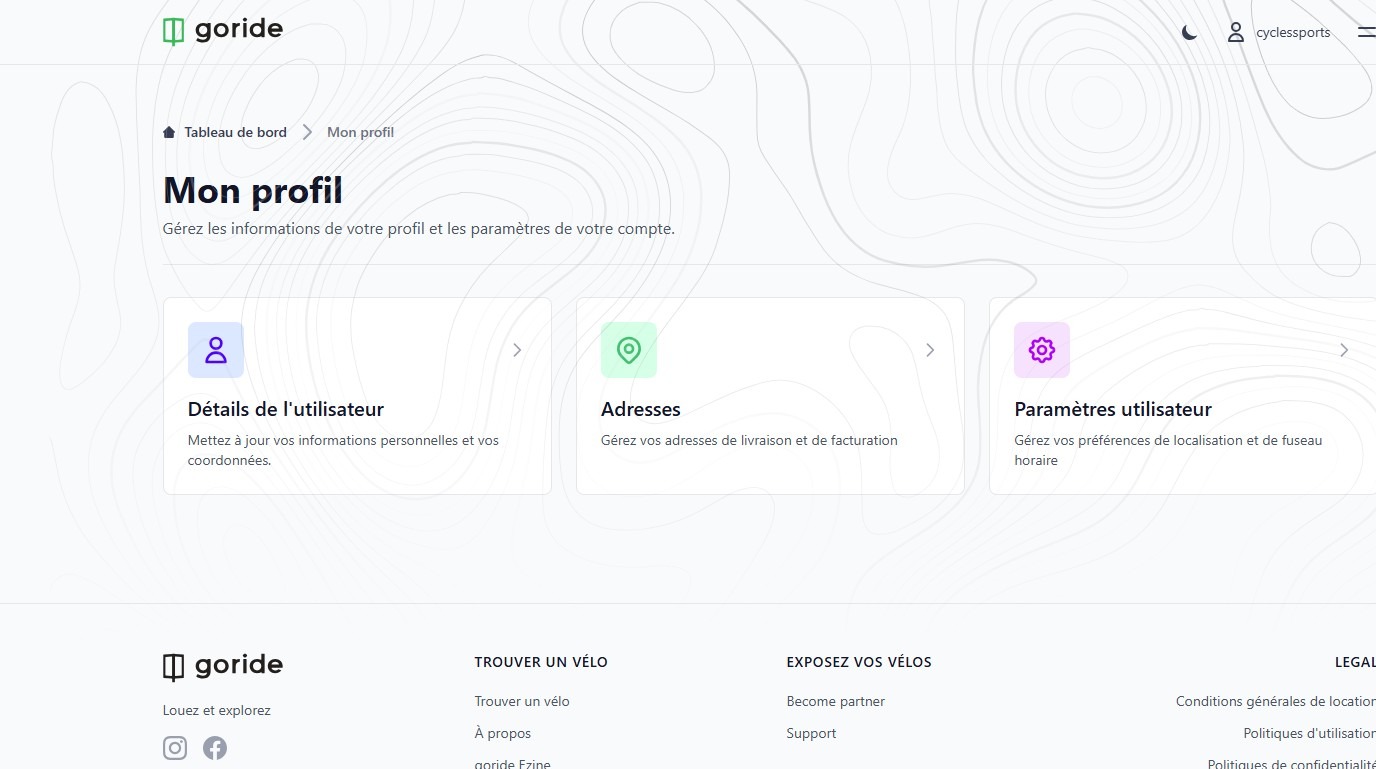
6. Complete the information in each sub section.
7. Next, complete the "Profil de la boutique"
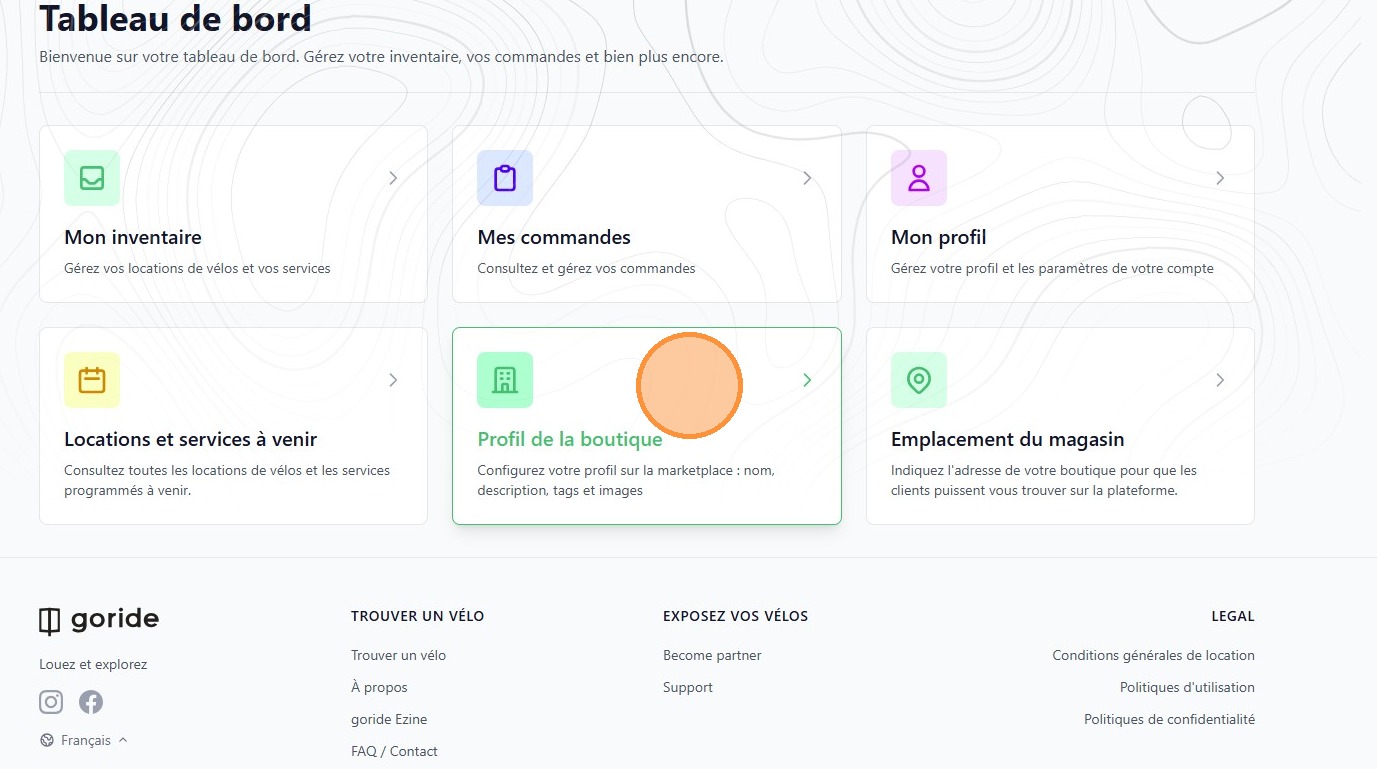
8. Click the "Nom du magasin" field.
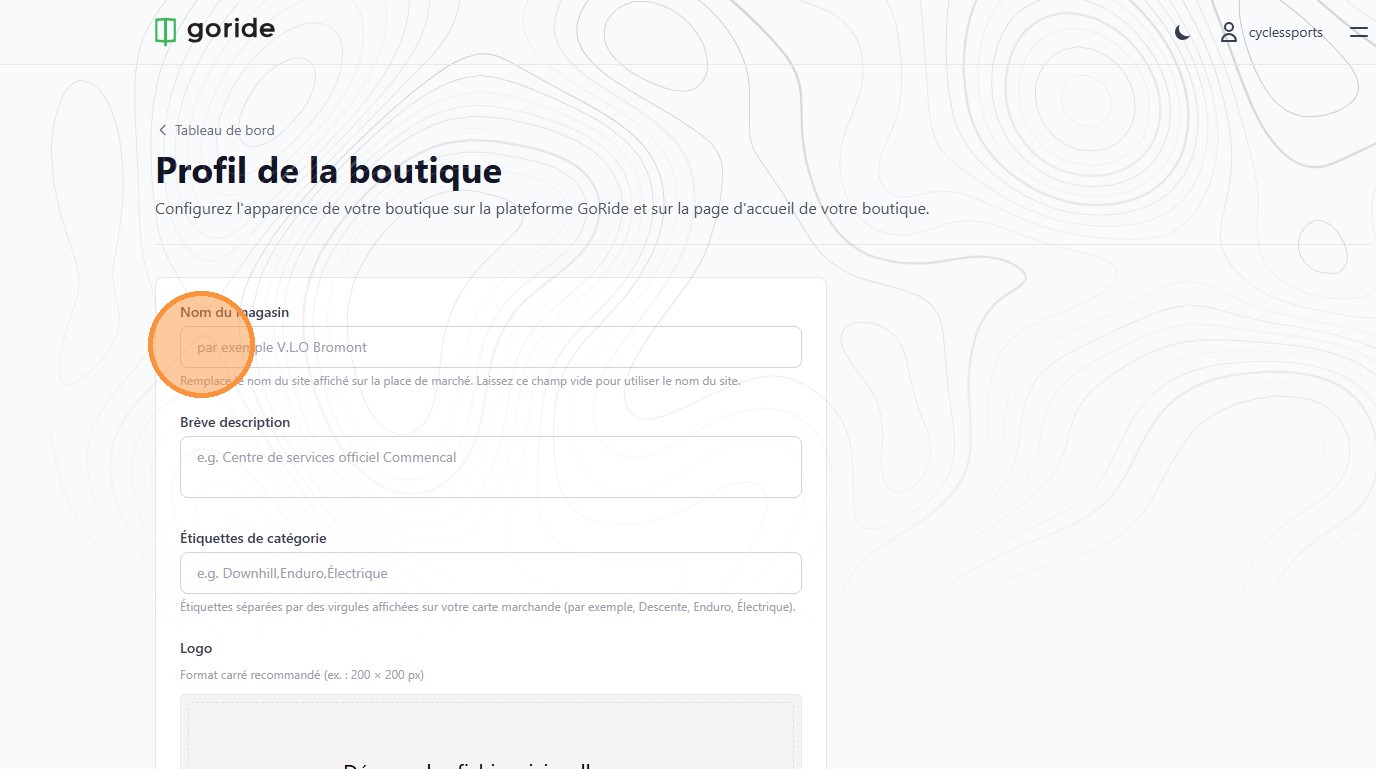
9. Your logo is what customers will see on your shop page.
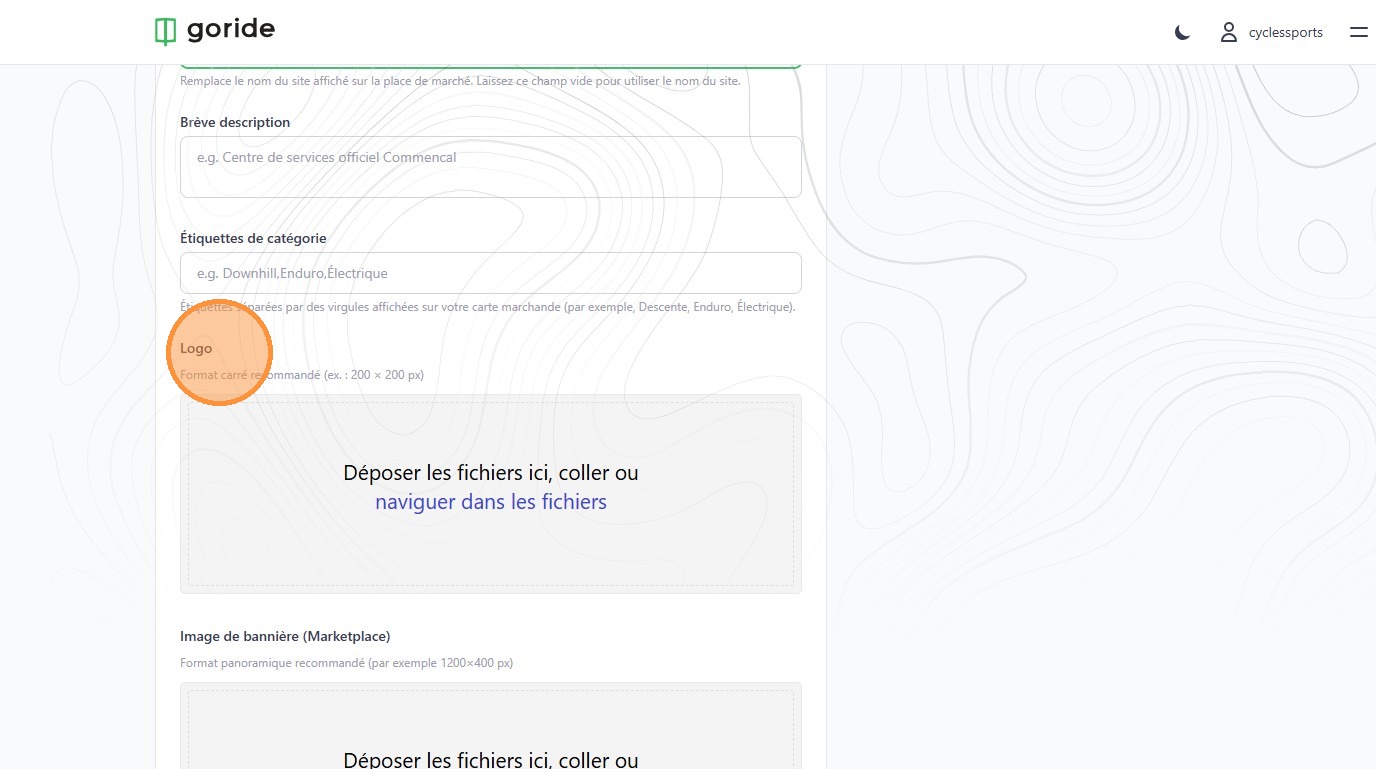
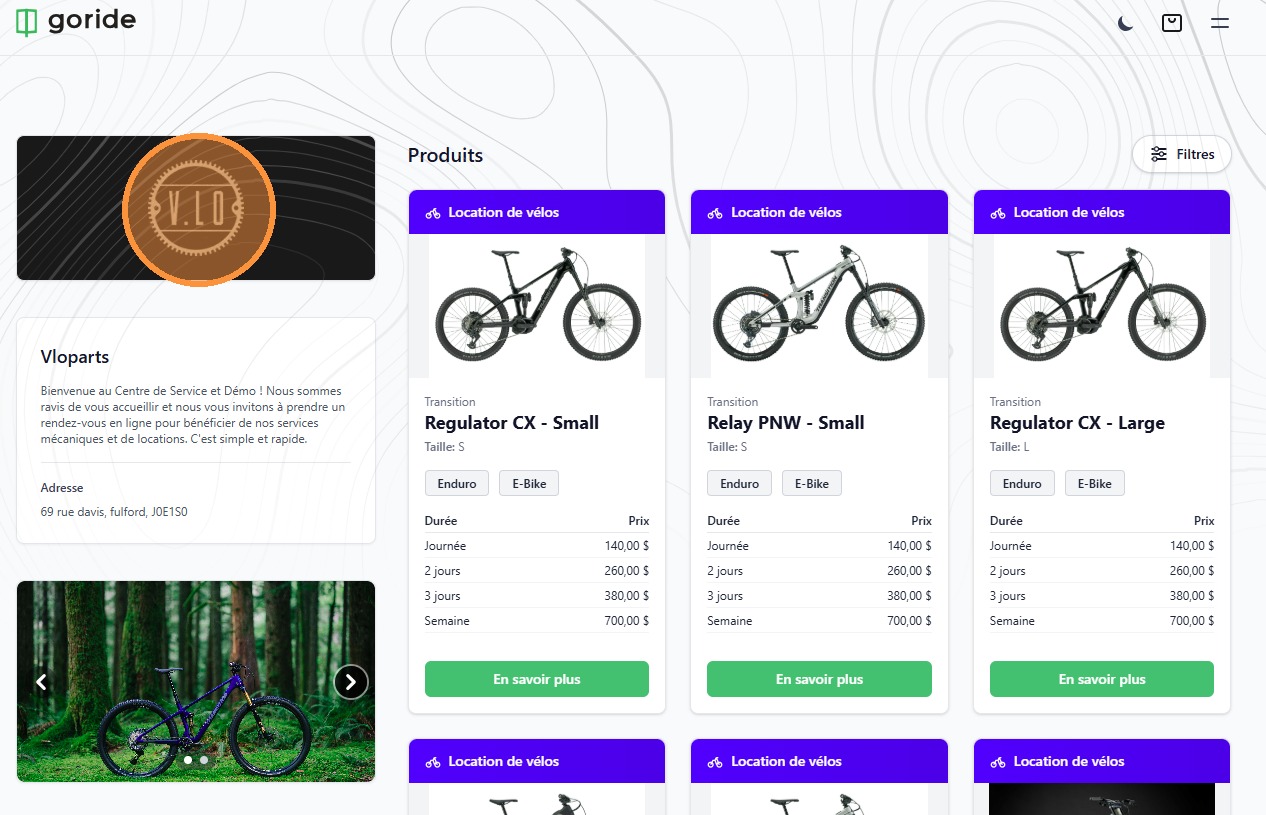
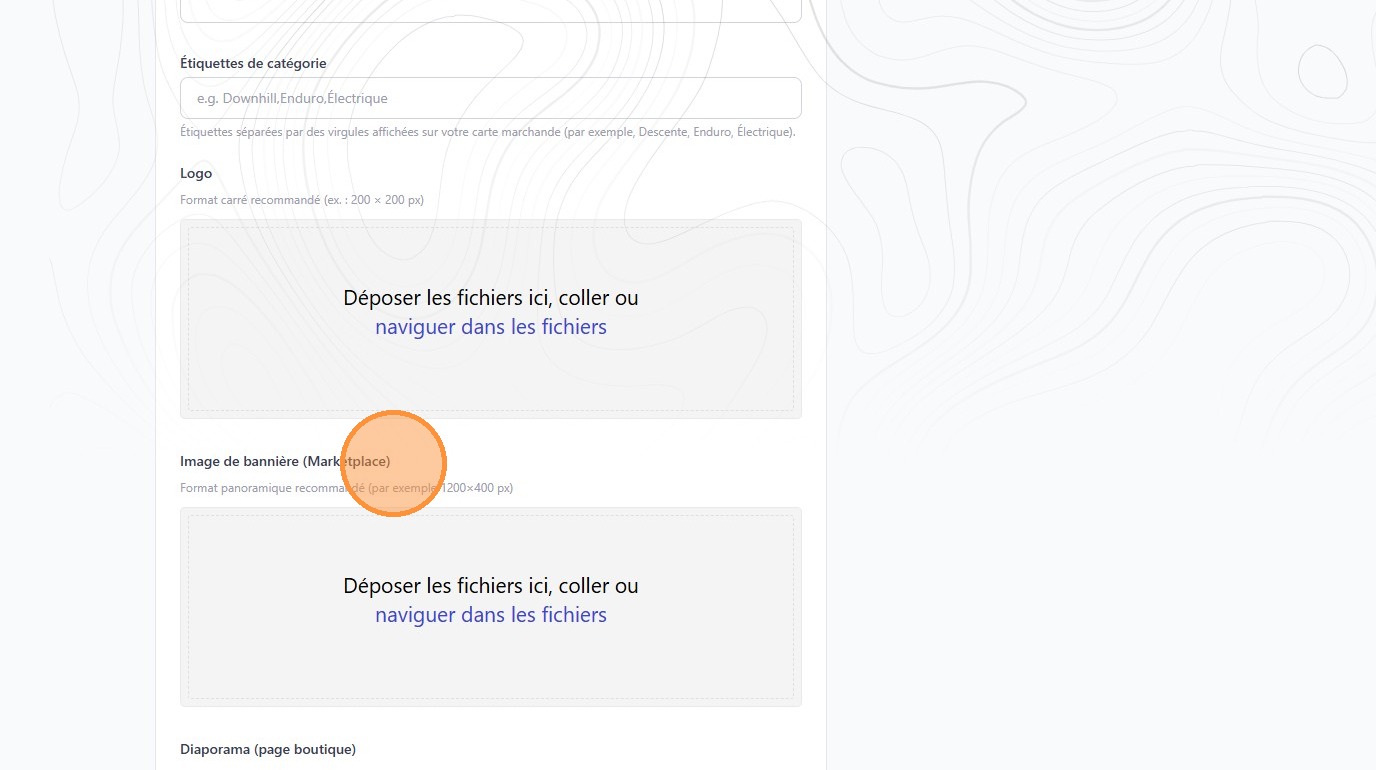
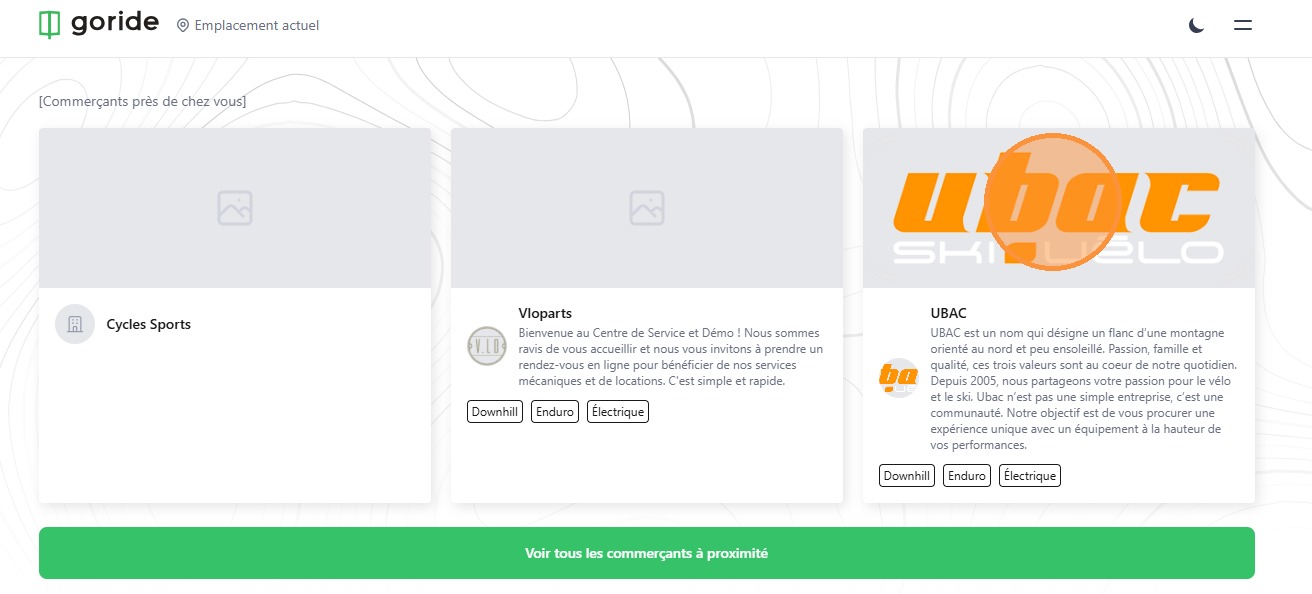
10. The "Image de bannière (Marketplace)" is what customers will see on GoRide's landing page. We recommend adding your logo in a horizontal image format (1200x400)
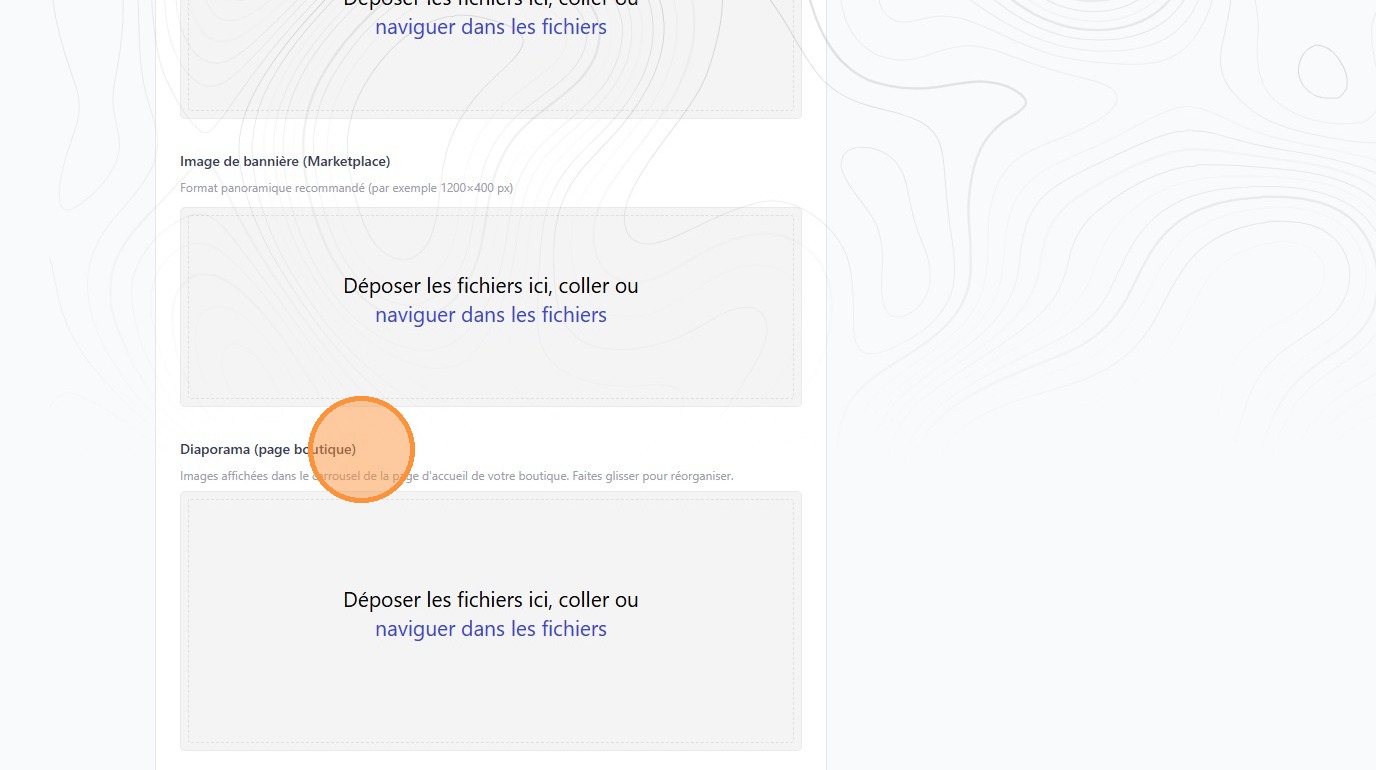
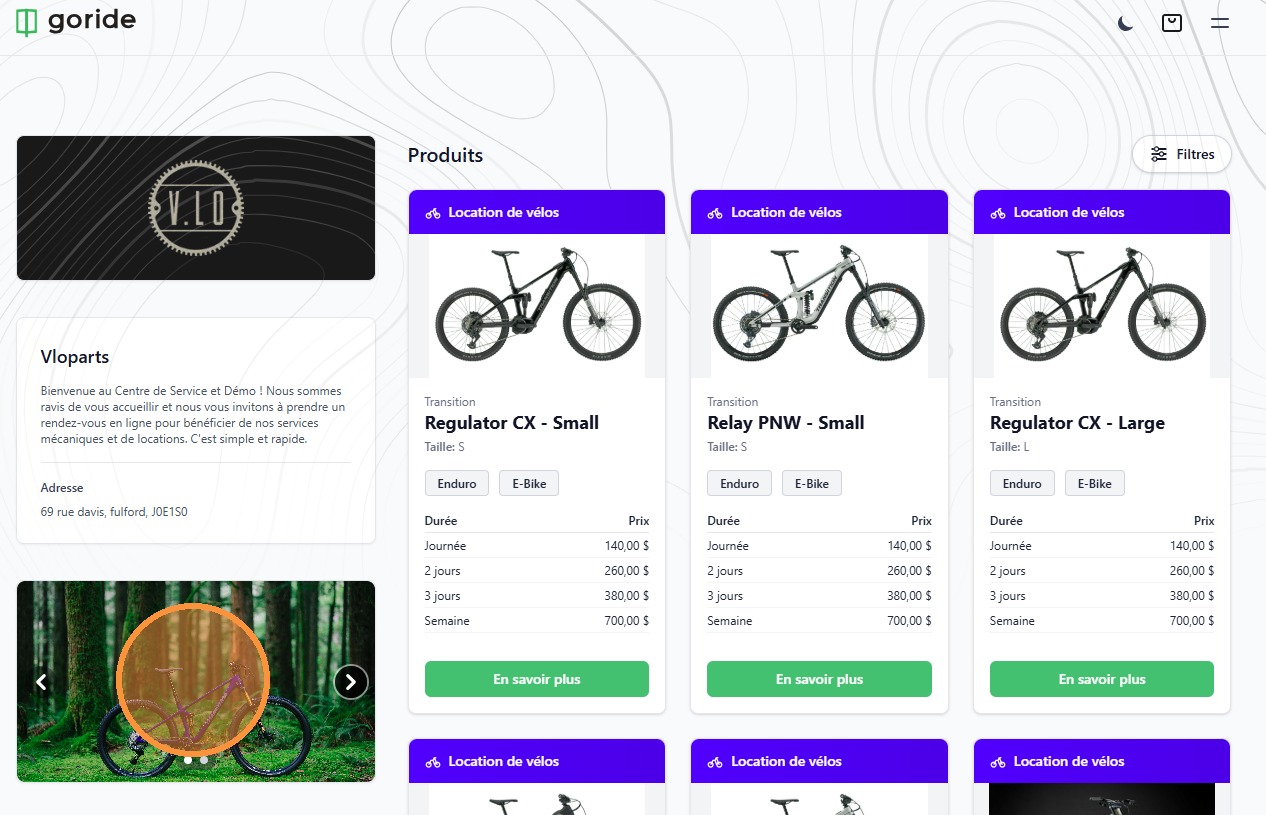
11. The "Diaporama (page boutique)" allows you to complete the visual identity of your shop page.
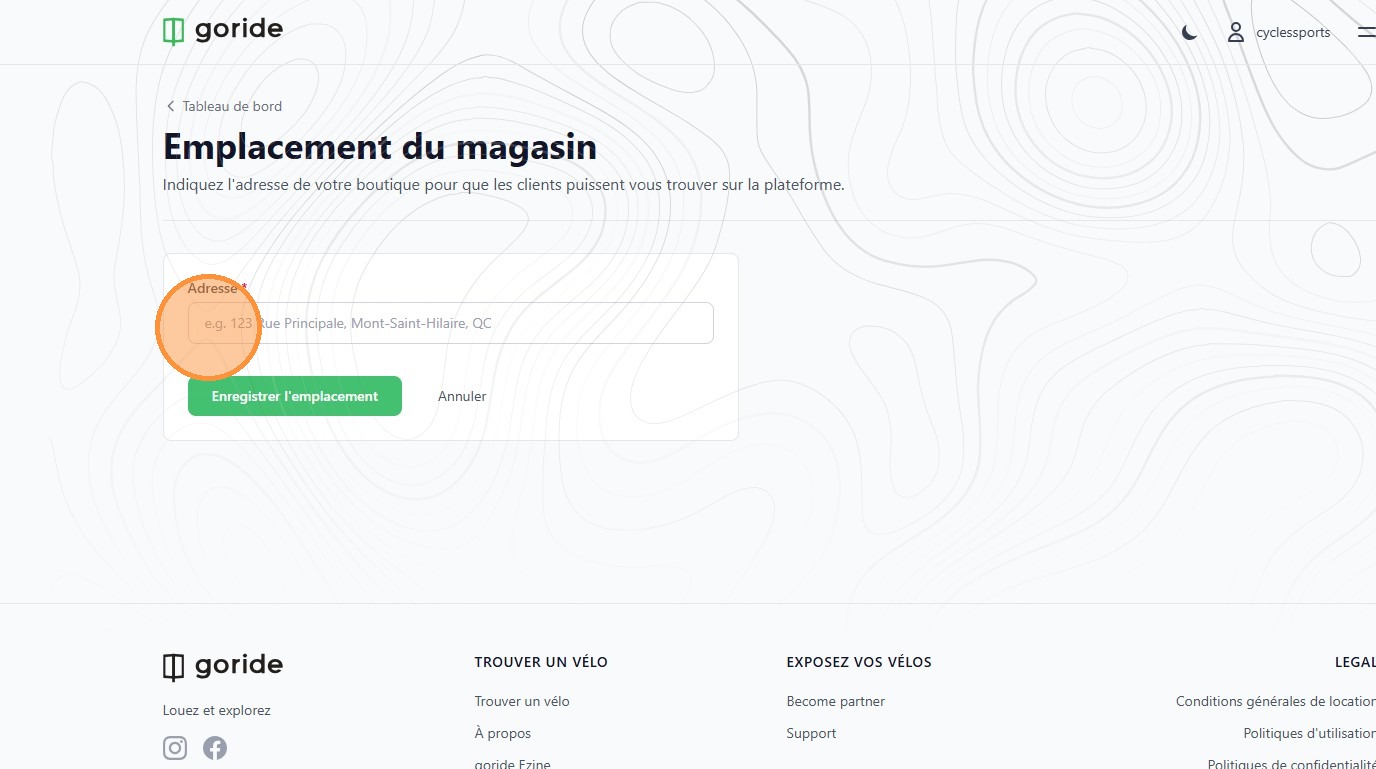
12. Next, confirm your shop's address
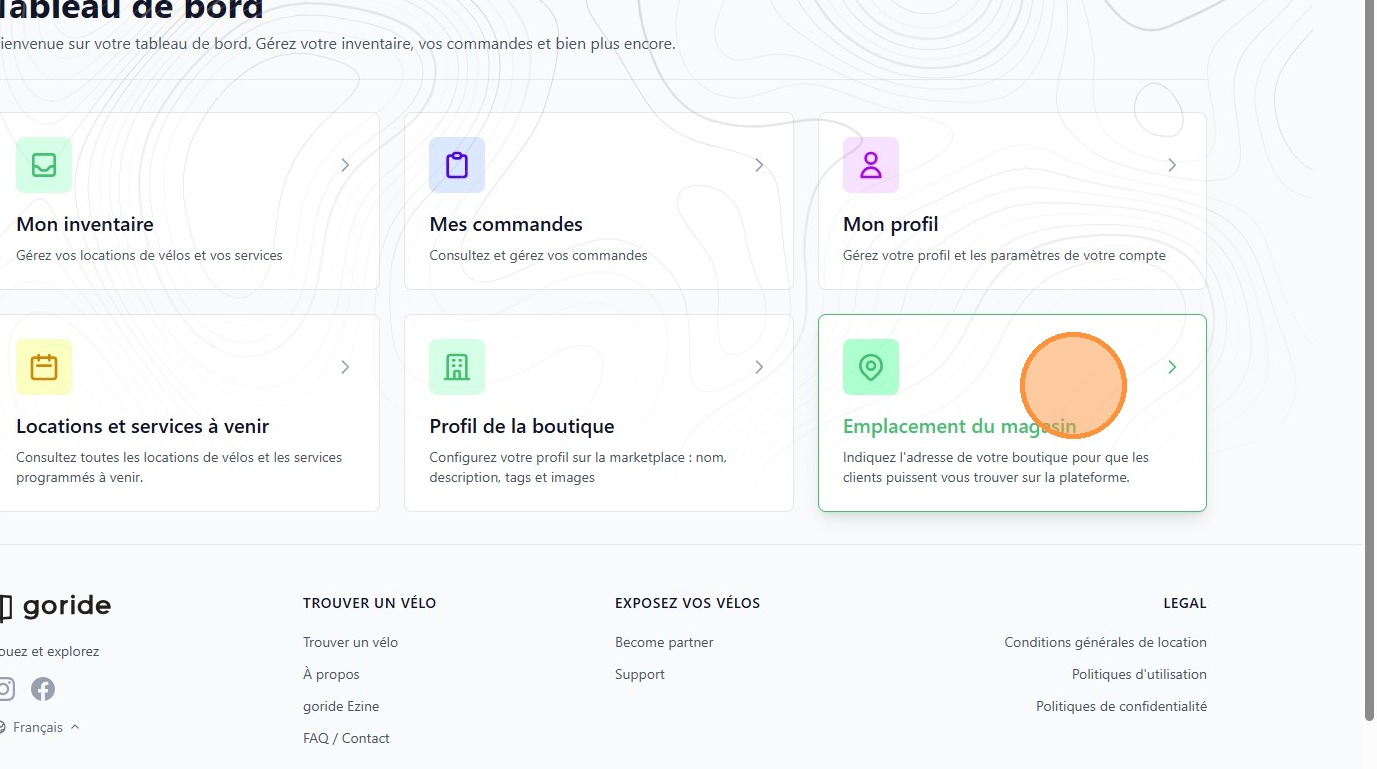
13. Click the "Adresse *" field.