
How To Create And Publish A New Service
Learn how to efficiently add a new service to your dashboard and upload associated files. This guide simplifies the process of configuring service details and publishing them to your platform.
1. Start from your dashboard
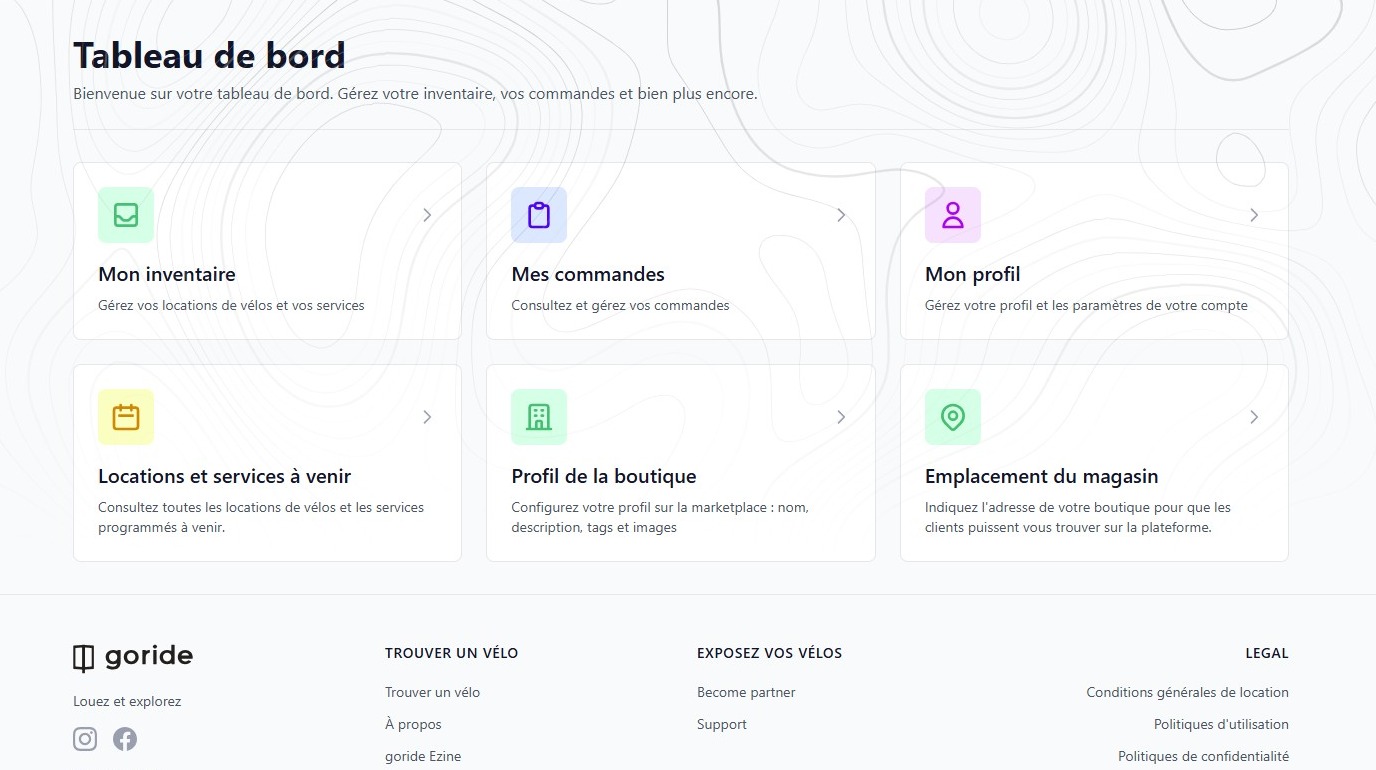
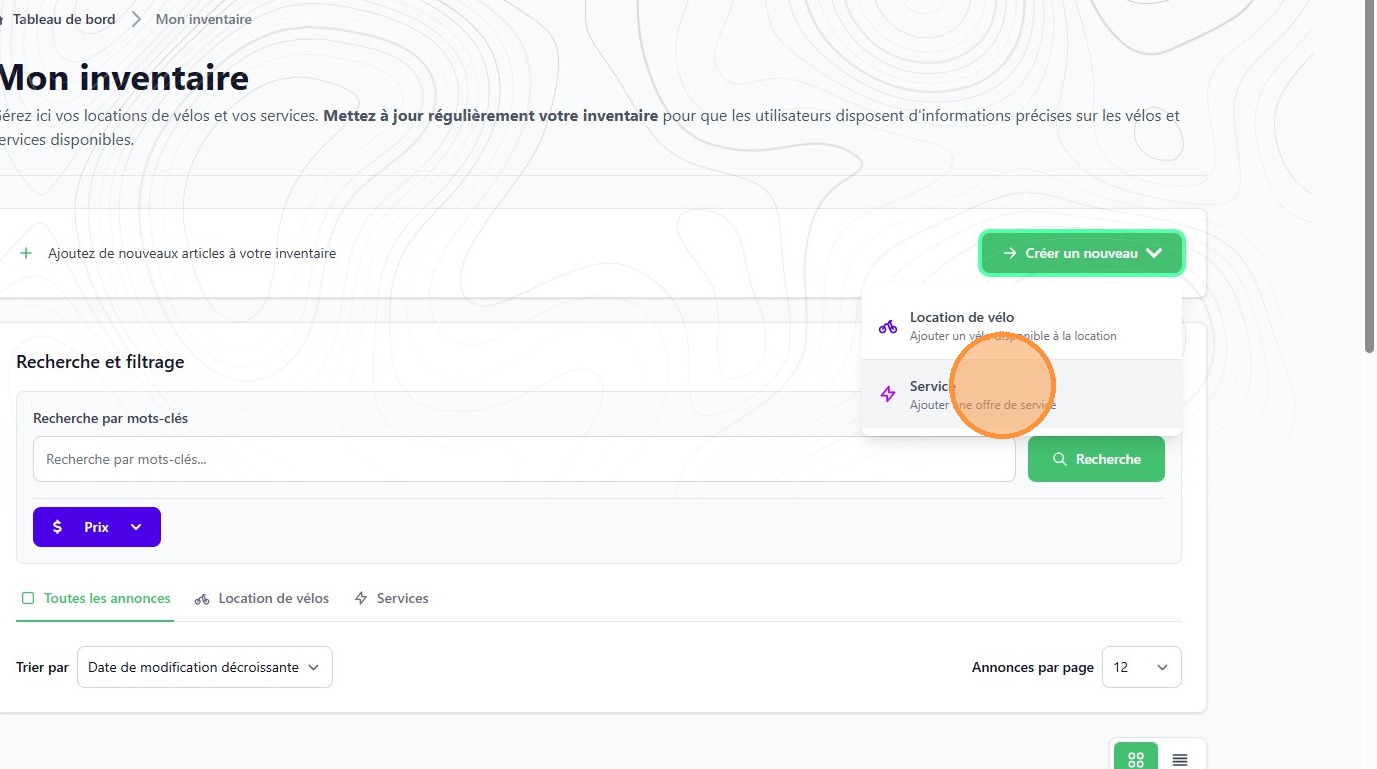
2. Click here.
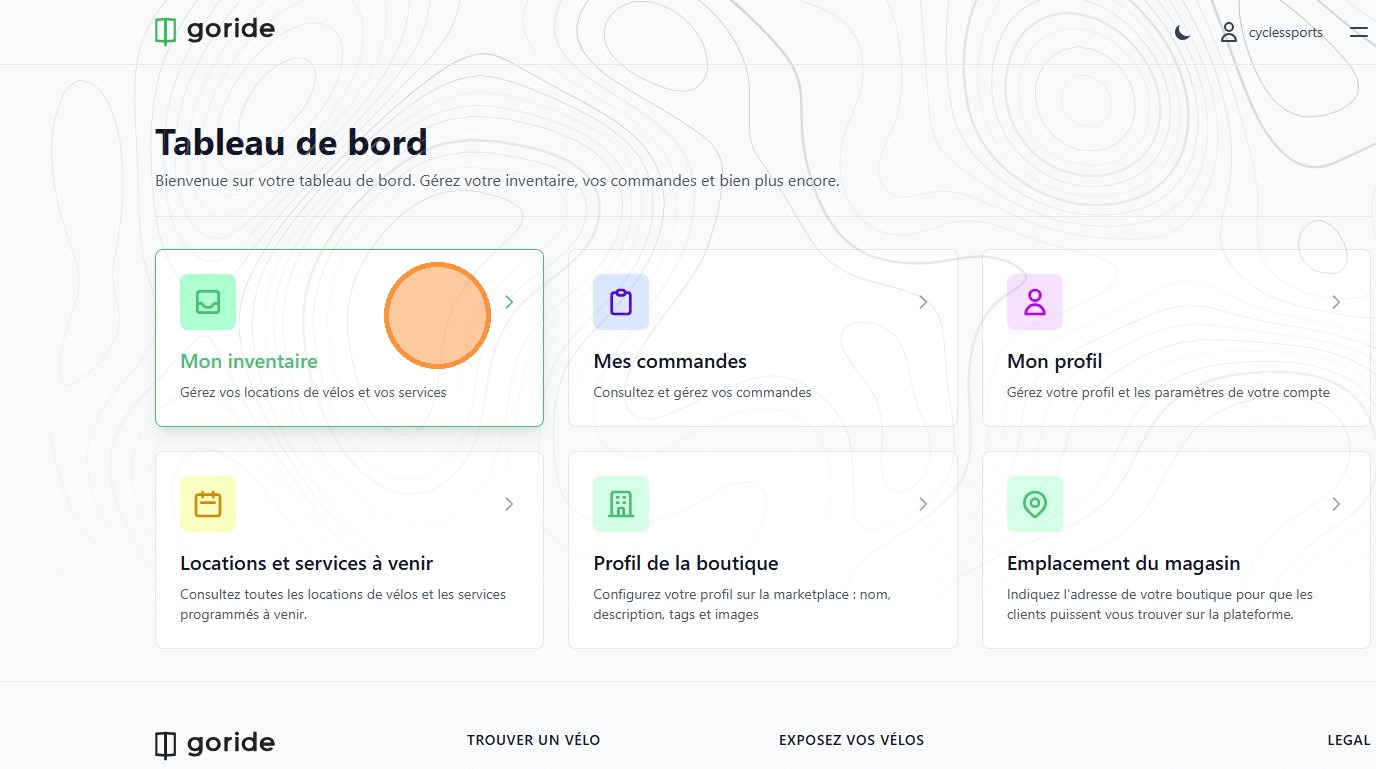
3. Click "Créer un nouveau"
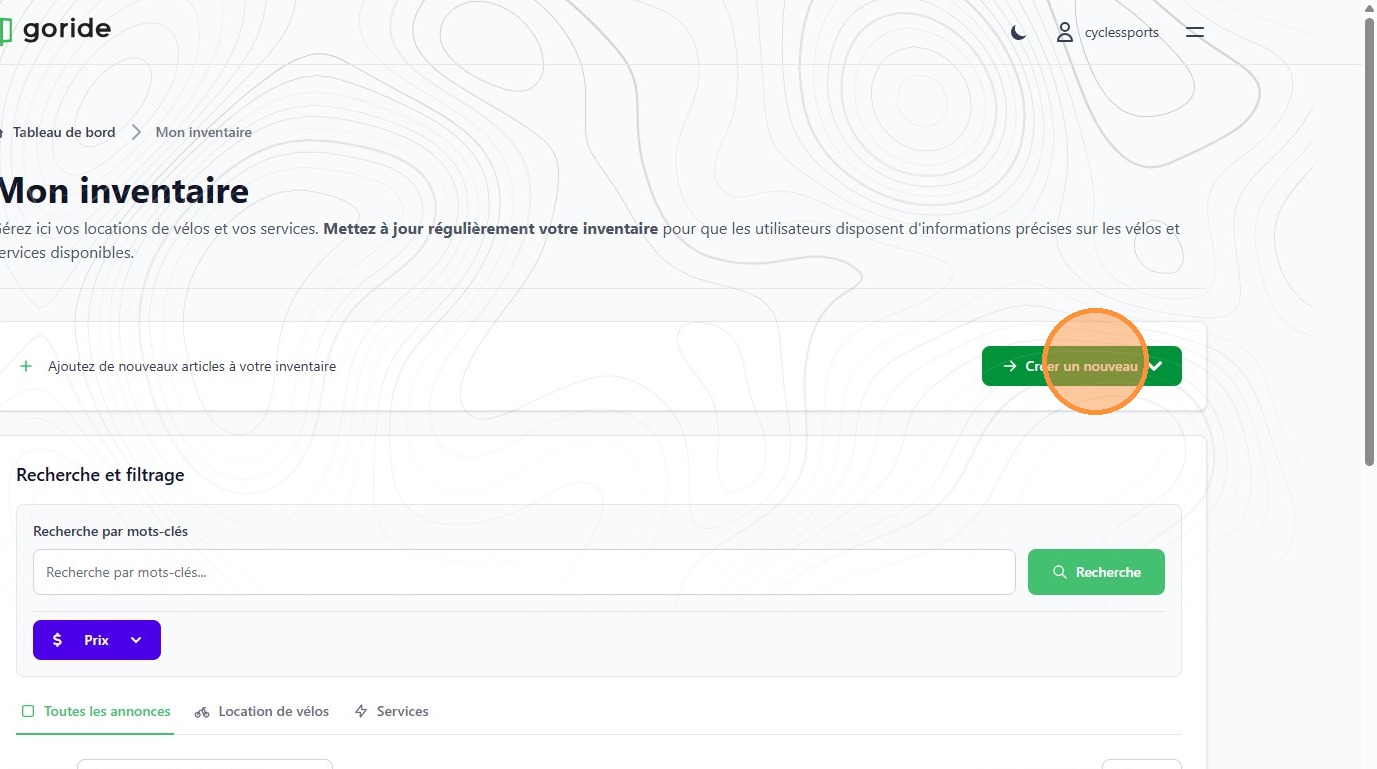
4. Click "Service"
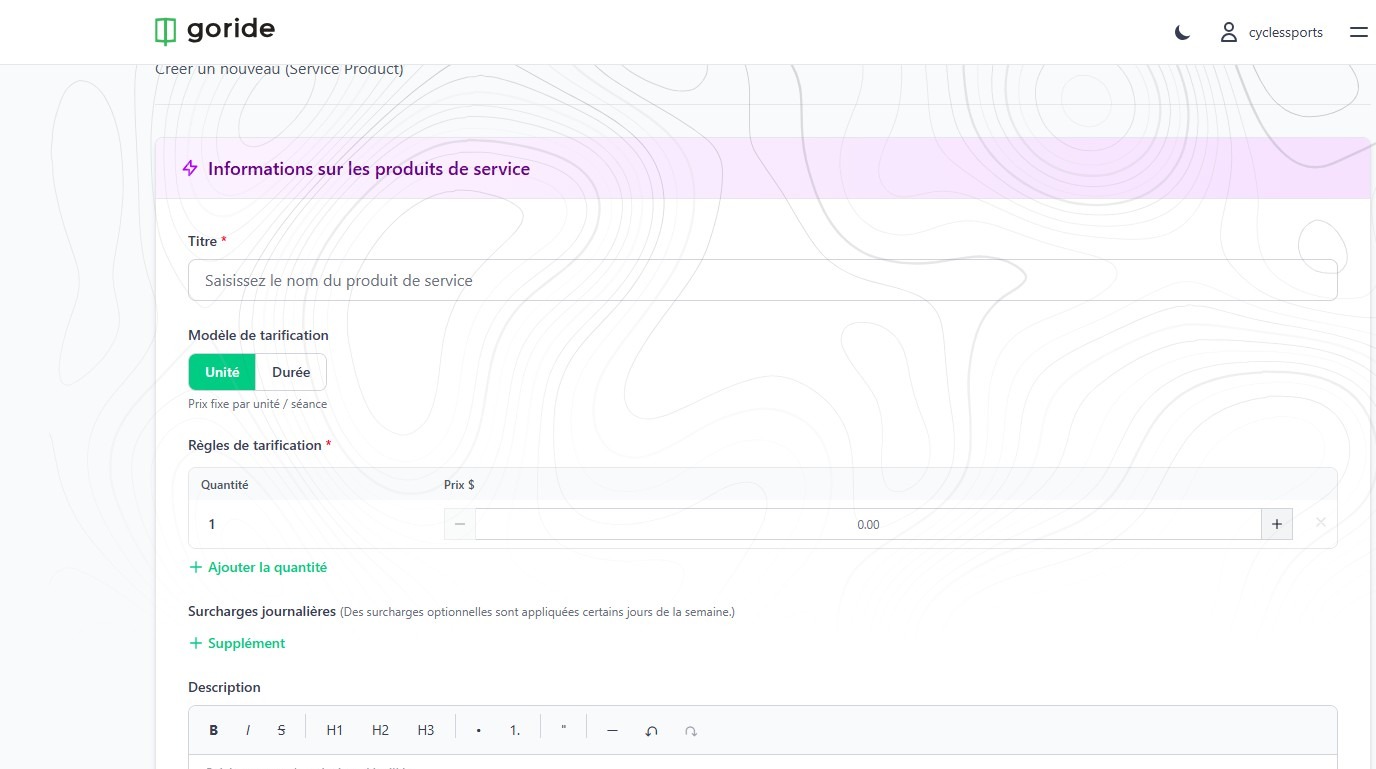
5. Fill in the required information
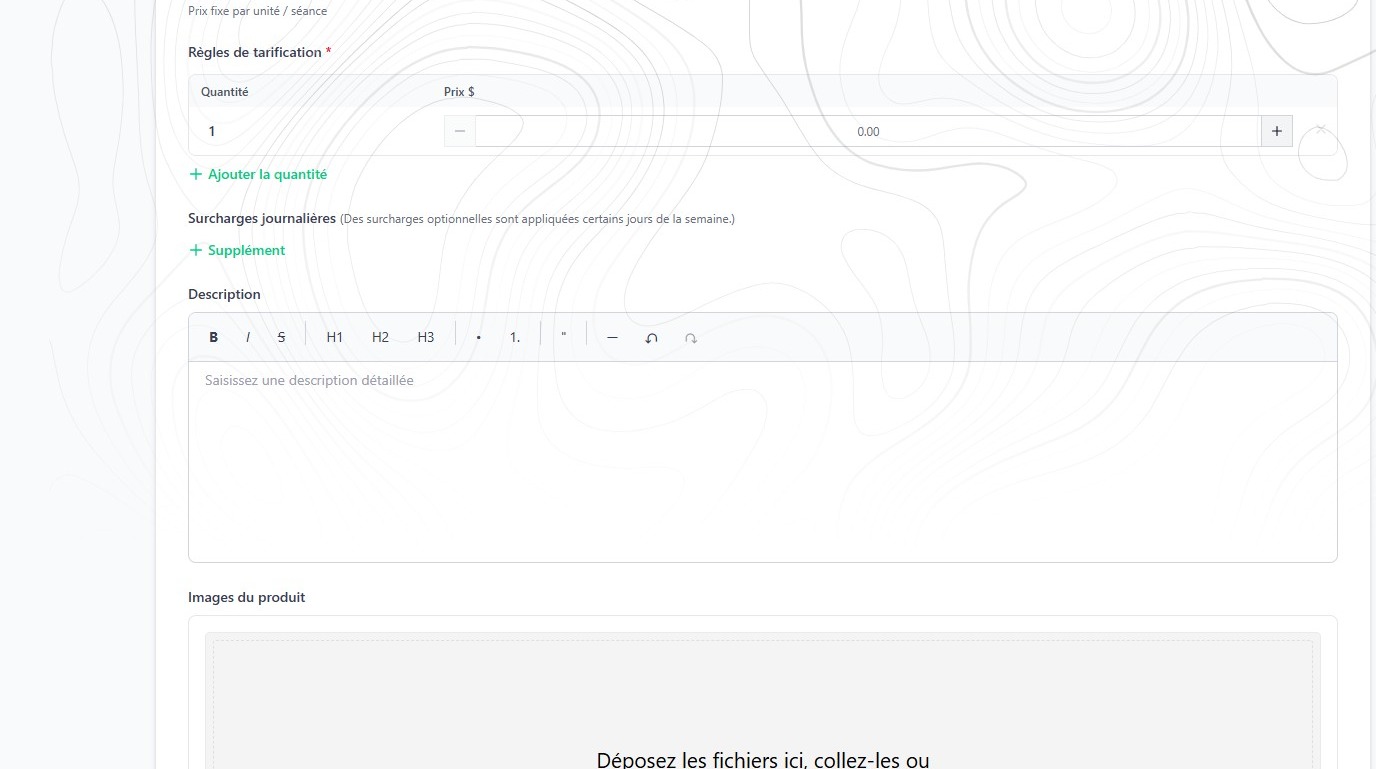
6. Add a service description
💡
It is essential for Merchants to clearly outline the inclusions and exclusions of their services to avoid any misunderstanding for the Rider. Under the Terms and Conditions, the listed price (whether hourly or flat rate) always represents the minimum amount payable for the covered maintenance service.
Any repairs, parts, or services not included must receive prior approval from the Rider, and additional charges will be billed directly at the time the equipment is picked up.
Any repairs, parts, or services not included must receive prior approval from the Rider, and additional charges will be billed directly at the time the equipment is picked up.
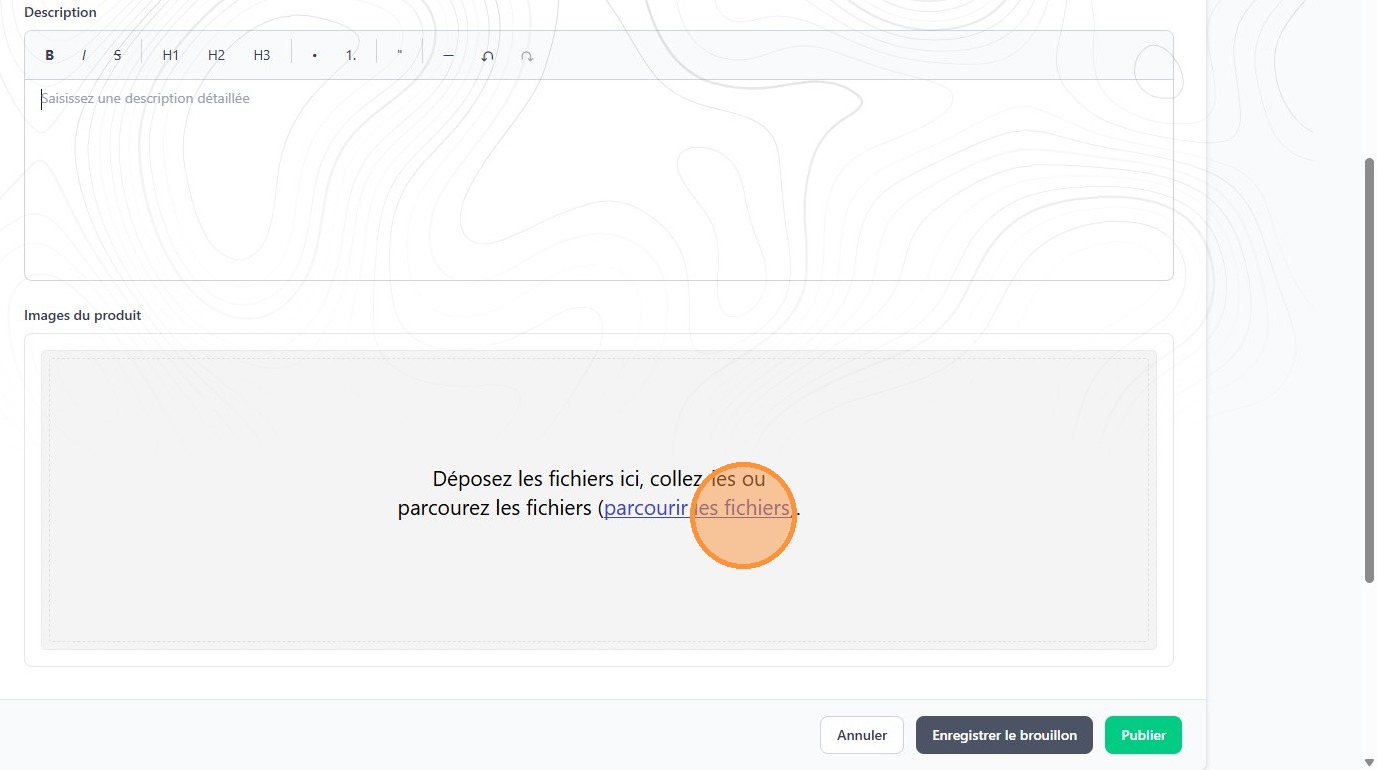
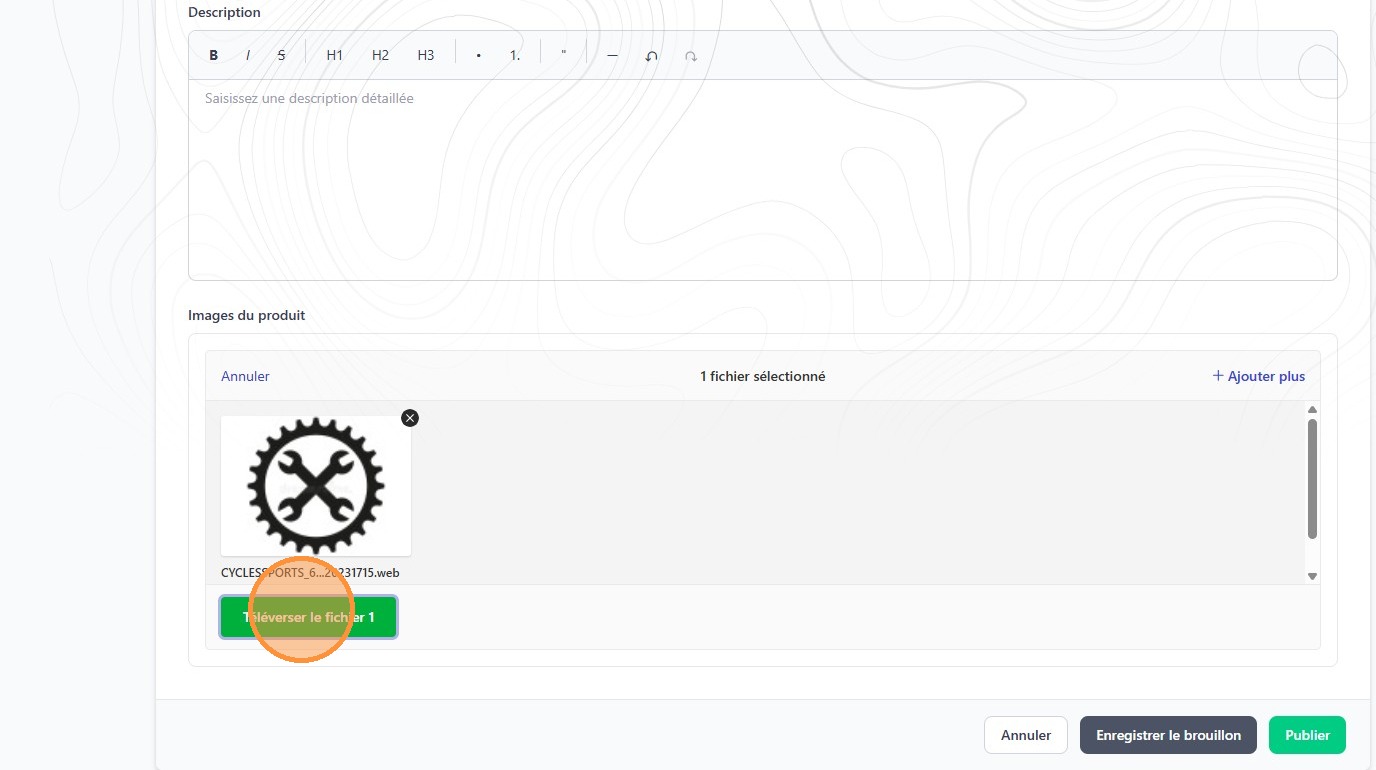
7. Add product images. We recommend either using your own pictures, or good quality icons found online.
🔜
We are working on providing stock images for services SKUs. Stay tuned!
8. Click "Téléverser le fichier"
⚠️
Do not forget to click "Téléverser". Your images will not upload otherwise.
9. Click either "Publier" or "Enregister le brouillon"
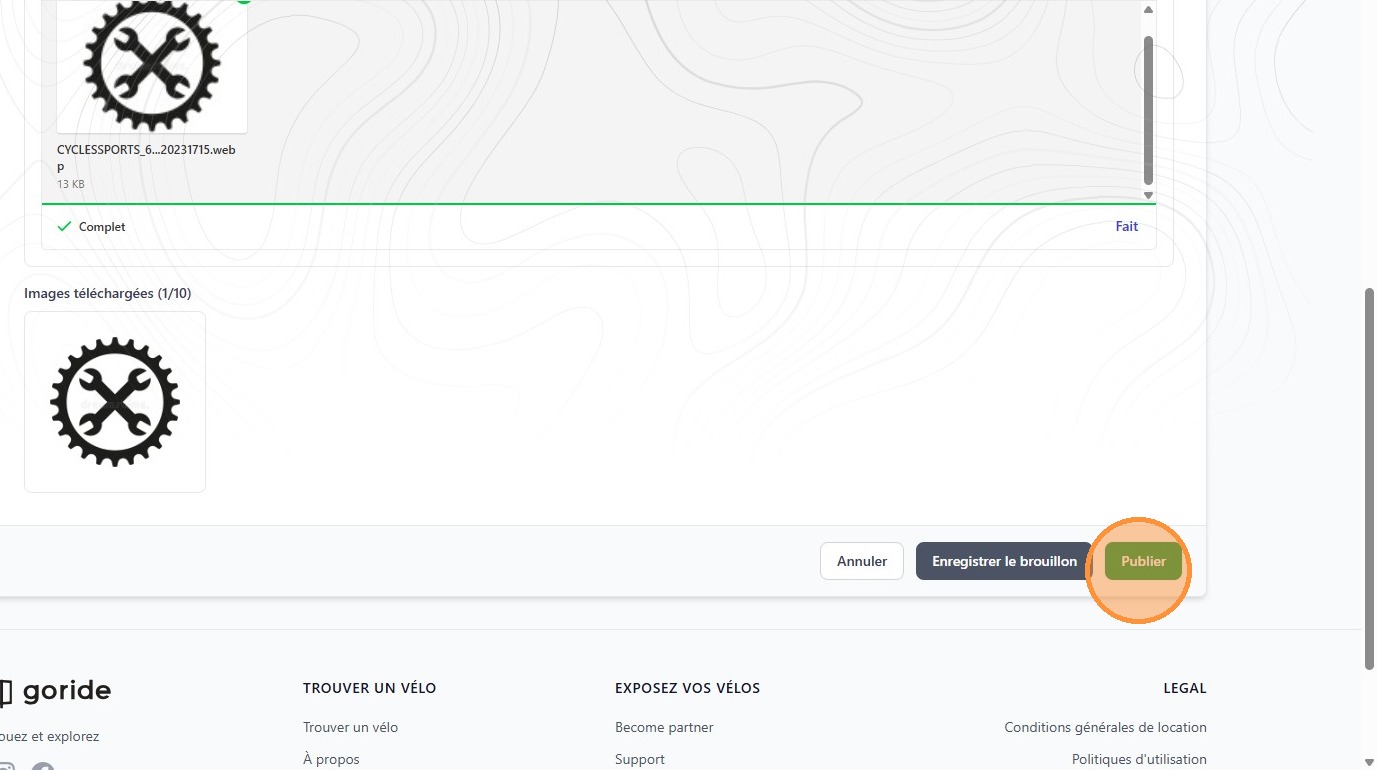
10. The product you just created will appear in the inventory section of your dashboard.
